User Guide
HustleBook (HB) is a desktop app specially catered towards financial advisors for managing client details and meetings, optimized for use via a Command Line Interface (CLI) while still having the benefits of a Graphical User Interface (GUI). If you can type fast, HB can get your client management meetings done faster than traditional GUI apps.
This guide will help provide you with all the necessary information to set up, run and use the HustleBook to manage your clients.
To get started, click on any of the headers in the table of content to jump to that section to get more information.
Table of Contents
- Introduction
- Quick Start
- All Features
- Command Summary
 Tip:
For new users, it is highly recommended starting off from the
Tip:
For new users, it is highly recommended starting off from the Quick Start section to get HustleBook up and running.
Introduction
Tired of how messy Excel sheets can get? Is your client consistently cancelling meetings on you where you have to manually find their name on your Excel sheet just to reschedule another meeting?
If this is relatable, then HustleBook is able to solve these issues. HustleBook is a desktop application made for financial advisors to manage their client details and meetings. HustleBook is optimized for users who can type fast through the CLI to get their tasks done.
If you are interested, continue reading our Quick Start to learn how you can get started with HustleBook in under 10 minutes.
Quick start
-
Ensure you have
Java 11or above installed in your Computer. What’s Java 11? -
Download the latest
HustleBookhere.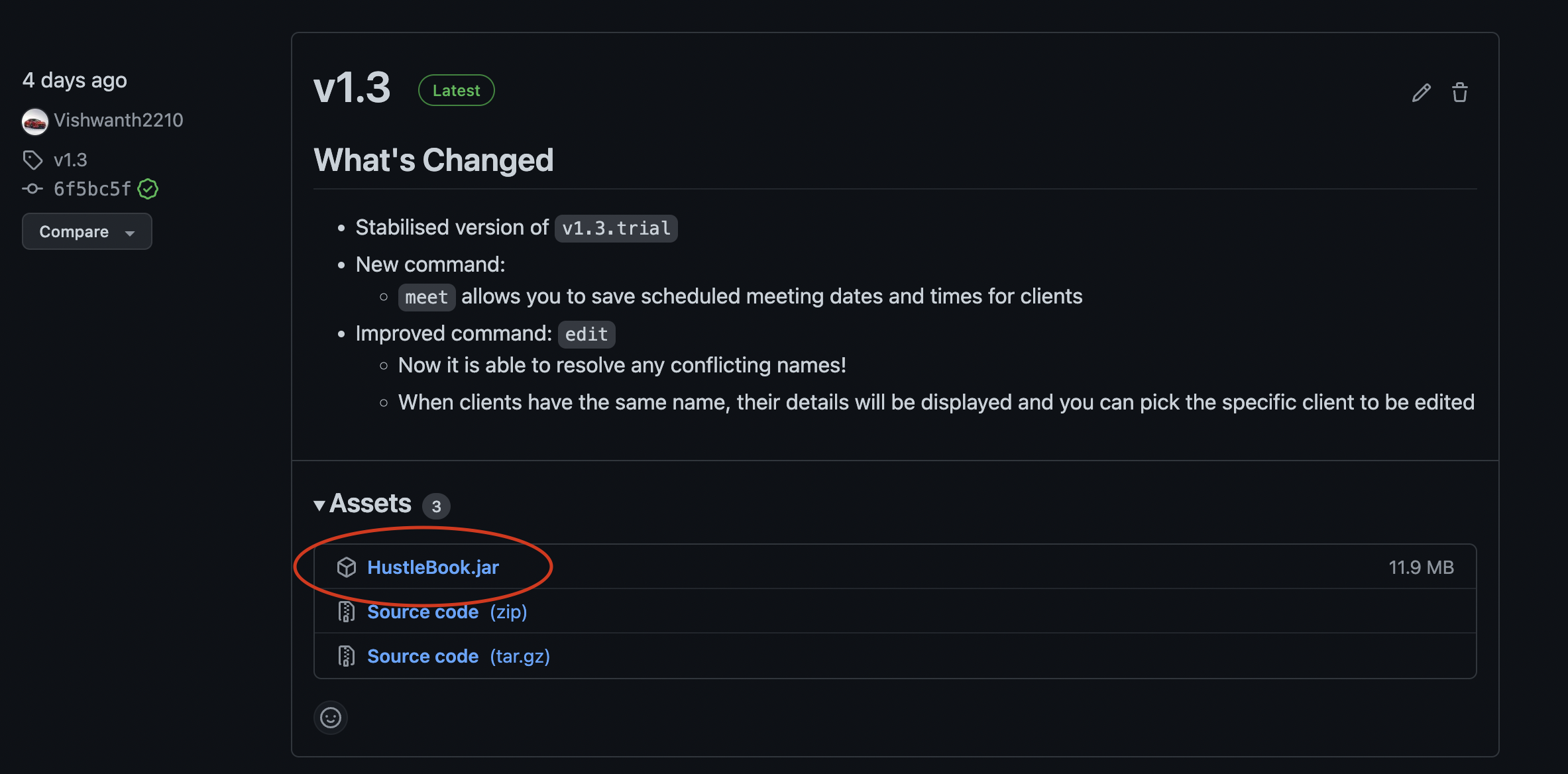
-
Place the file into a folder where you would like to keep it. We recommend keeping it in your
Desktopfolder for easier access. -
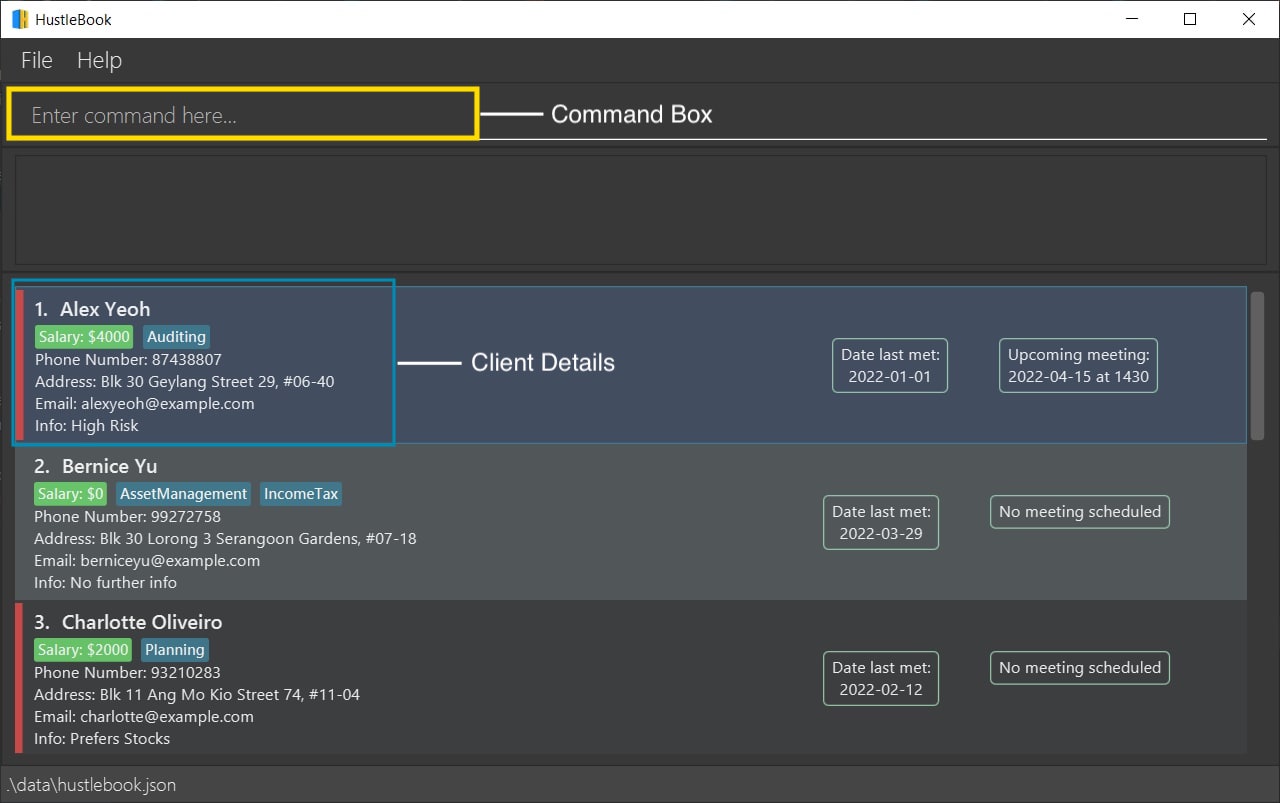
Double-click the file to start the app. The GUI similar to the below should appear in a few seconds. Note how the app contains some sample data.
-
That’s it. Your HustleBook is ready to go! 🎉 Keep following the steps to get to know how HustleBook can help you.
-
Let’s try out some features! Type the command in the command box and press Enter to run it. e.g. typing
helpand pressing Enter will open the help window.
Some example commands you can try:-
list: Lists all contacts. -
addn/John Doe p/98765432 e/johnd@example.com a/John street, block 123, #01-01: Adds a contact namedJohn Doeto the HustleBook. -
deleteJohn Doe: DeletesJohn Doefrom the list. -
clear: Deletes all contacts. -
exit: Exits the app.
-
-
Refer to the Basic Features below to learn all the essential commands.
Now that you have set up the HustleBook, lets take a look at what HustleBook offers to allow you to keep the hustle without lifting a muscle.
All Features
You can find basic, useful and miscellaneous features below. If you are new to HustleBook, we recommend to look through the basic features to start managing your clients and meetings.
Legends
 - Important information that you should keep in mind.
- Tips to make your workflow with HustleBook more efficient.
 - Important information to keep your HustleBook working at all times.
Basic Features
Here you can find all the necessary features to manage your clients and meetings.
Notes about the command format:
-
Words in
UPPER_CASEare the parameters to be supplied by the user.
e.g. inadd n/NAME,NAMEis a parameter which can be used asadd n/John Doe. -
Items in square brackets are optional.
e.gn/NAME [t/TAG]can be used asn/John Doe t/friendor asn/John Doe. -
The
|symbol represents or.
e.glist [flag|unflag]means valid commands arelist flagandlist unflag -
Items with
… after them can be used multiple times including zero times.
e.g.[t/TAG]…can be used ast/friend,t/friend t/familyetc. -
Parameters can be in any order.
e.g. if the command specifiesn/NAME p/PHONE_NUMBER,p/PHONE_NUMBER n/NAMEis also acceptable. -
If a parameter is expected only once in the command but if you specified it multiple times, only the last occurrence of the parameter will be taken.
e.g. if you specifyp/12341234 p/56785678, onlyp/56785678will be taken. -
Extraneous parameters for commands that do not take in parameters (such as
undo,redo,exitandclear) will be ignored.
e.g. if the command specifiesclear 123, it will be interpreted asclear.
Viewing help : help
Shows a message explaining how to access the help page.

Format: help [COMMAND]
Note:
- Enter optional parameter
COMMANDto view the usage for that command. - Entering only the
helpwill allow you to view message explaining how to access help page and the usage of all commands.
Example:
helphelp meet
Outcome of help meet:

Managing your clients
Listing all clients : list
Shows a list of clients in the HustleBook.
Format: list [flag|unflag]
Note:
- Optional Parameter allows you to view only flagged or only unflagged clients.
- If the optional parameter is not provided, both flagged and unflagged clients will be displayed.
Adding a client : add
Adds a client to the HustleBook.
Format: add n/NAME p/PHONE_NUMBER e/EMAIL a/ADDRESS [s/SALARY] [i/INFO] [d/DATE] [f/FLAG] [t/TAG]…
Note:
- HustleBook does not allow duplicate clients to be stored.
- Duplicate is found when two clients have the exact
NAME. - Duplicate
NAMEare case-insensitive.Johnis a duplicate ofJoHn.
- Duplicate is found when two clients have the exact
-
n/NAMEcan only contain letters and numbers with single space in between each name.-
William B JandJohn The 2ndis acceptable.Clara Tanis not acceptable.
-
-
d/DATEwill be set to today’s date by default if not specified.-
DATEhas to be in the format YYYY-MM-DD. -
DATEaccepts any date (past or future) as long as it is valid. For example,2022-02-29is invalid as 2022 is not a leap year.
-
-
p/PHONE_NUMBERneeds to be minimum 7 digits and maximum 15 digits. -
i/INFOwill be set toNo further infoby default if not specified. -
t/TAGwill be empty by default if not specified.- Each tag is limited to 25 characters maximum currently.
-
f/FLAGwill be set tofalseby default if not specified. -
s/SALARYwill be set to 0 by default if not specified.- Salary is limited to 15 digits maximum currently.
Examples:
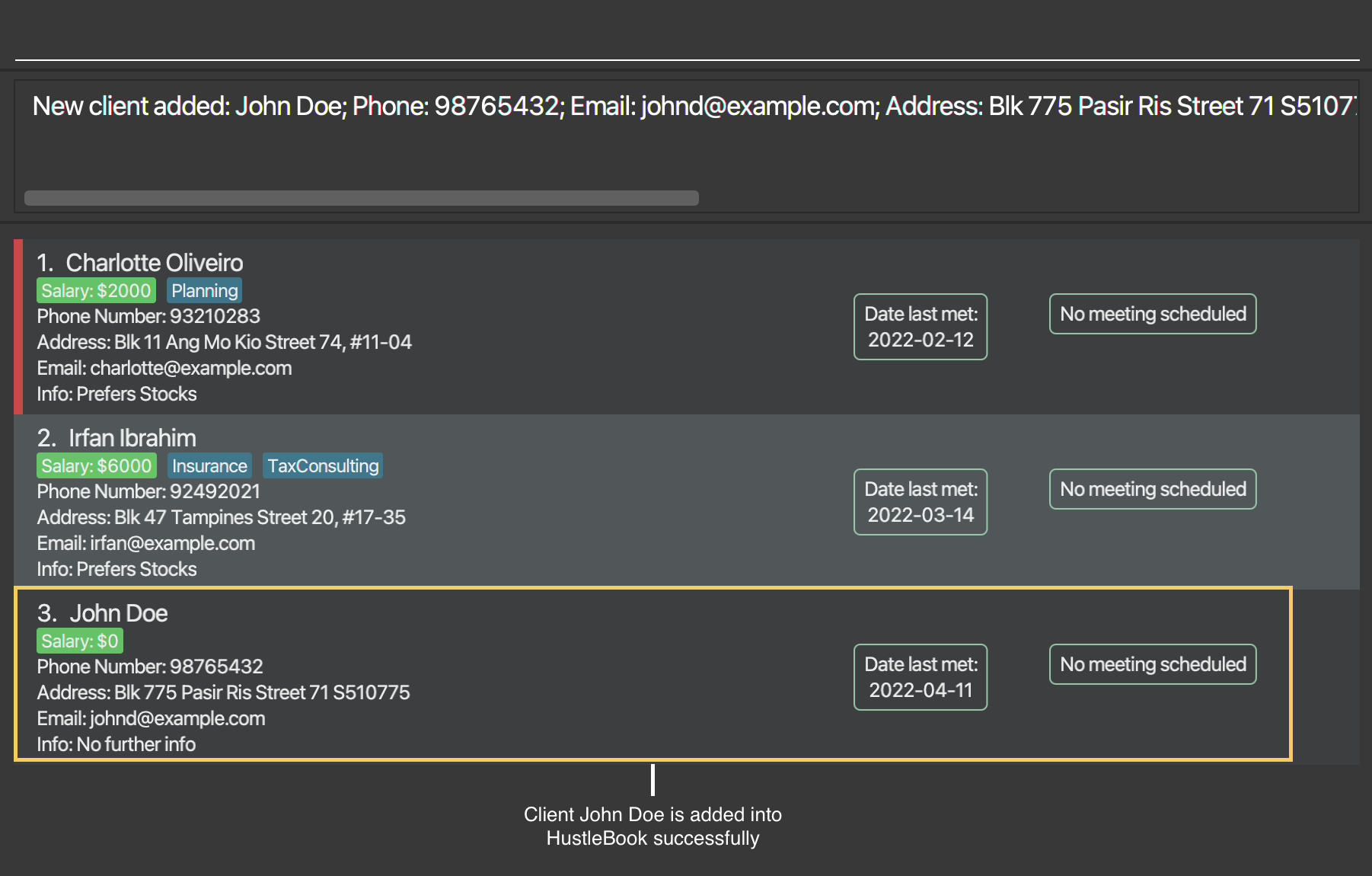
add n/John Doe p/98765432 e/johnd@example.com a/Blk 775 Pasir Ris Street 71 S510775add n/Betsy Crowe t/friend e/betsycrowe@example.com a/NUS School of Computing, COM1 s/4300 p/1234567 i/Low Risk Tolerance f/true
Outcome of add n/John Doe p/98765432 e/johnd@example.com a/Blk 775 Pasir Ris Street 71 S510775:
Tip:
A client’s meeting can be scheduled through meet command after adding the client into the HustleBook
Editing a client : edit
Edits an existing client in the HustleBook.
Format: edit NAME [n/NAME] [p/PHONE] [e/EMAIL] [a/ADDRESS] [s/SALARY] [i/INFO] [d/DATE] [t/TAG]…
Note:
- Edits the client with the specified
NAME.-
Nameis case-insensitive. E.g.Johnwill matchjohn. - Only full words will be matched e.g.
Hanwill not matchHans.
-
- If
NAMEis multiple words, the whole string will be used to search for clients.- Words in
NAMEstill have to fully match words in client’s name - Example:
Jonathan Leewill matchJonathan Lee Juler.Lee Julerwill also matchJonathan Lee Juler,Jonathan Lwill not match.
- Words in
- If
NAMEmatches multiple clients, you will see a list of clients with matching names- Input the position on the list of the client you wish to edit.
Example:
Scenario 1: You have a client named John Doe
-
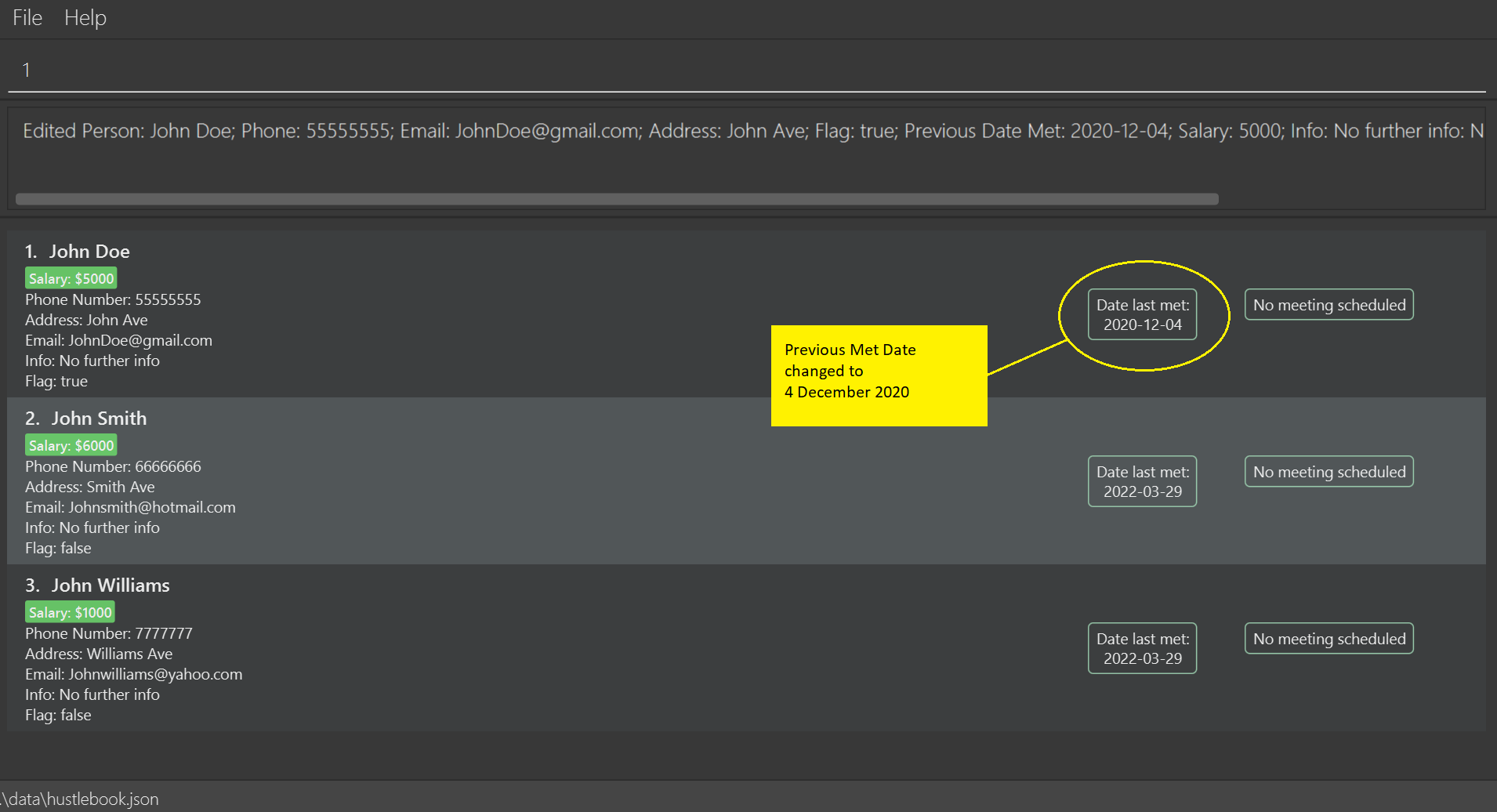
edit John Doe d/2020-12-04Edits the previous meeting date of the client with the nameJohn Doeto2020-12-04which is 4th Dec 2020.
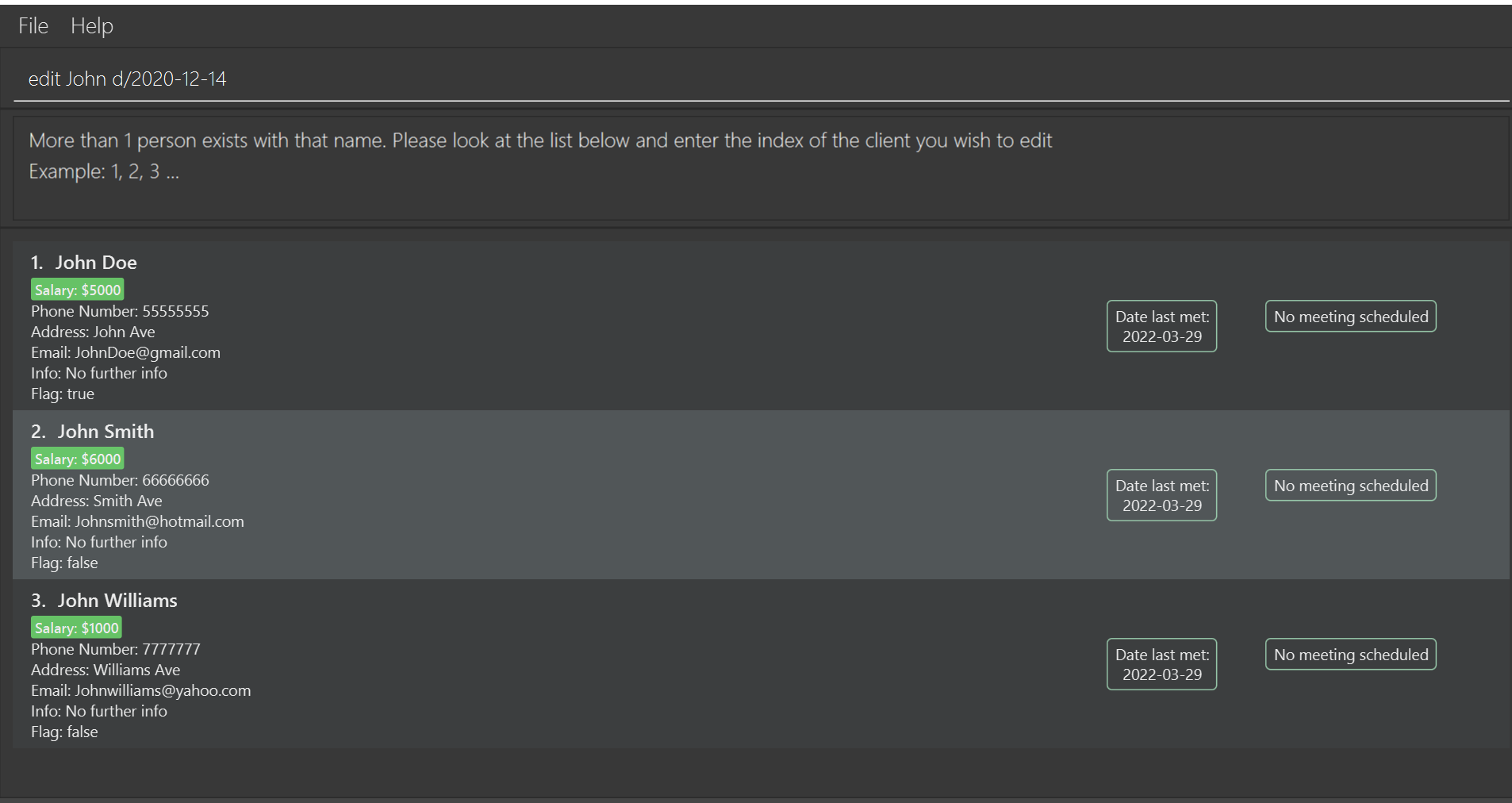
Scenario 2: You have clients named John Doe John Smith and John Willams
- Running the command
edit John d/2020-12-04will show a list of clients with names containing “John”
- Typing
1will edit “John Doe”, typing2will edit “John Smith” and typing3will edit “John Williams” - After typing
1, the previous meeting date of the client with the nameJohn Doeto2020-12-04
Notes on edit:
-
DATEhas to be in the format YYYY-MM-DD. - At least one of the optional fields must be provided.
- Existing values will be updated with the input values.
- When editing tags, the existing tags of the client will be removed i.e adding of tags is not cumulative.
- You can remove all the client’s tags by typing
t/without specifying any tags after it. - You can remove the client’s info by typing
i/without specifying any info after it.
Deleting a client : delete
Deletes the specified client from the HustleBook.
Format: delete NAME
Note:
- Deletes the client with the specified
NAME.-
NAMEis case-insensitive. e.g.Johnwill matchjohn. - Only full words will be matched e.g.
Hanwill not matchHans.
-
- If
NAMEis multiple words, the whole string will be used to search for clients.- Words in
NAMEstill have to fully match words in client’s name - Example:
Jonathan Leewill matchJonathan Lee Juler.Lee Julerwill also matchJonathan Lee Juler,Jonathan Lwill not match.
- Words in
- If
NAMEmatches multiple clients, you will see a list of clients with matching names- Input the position on the list of the client you wish to edit.
Example:
Scenario 1: You have a client named John Doe
delete John Doe removes client John Doe from HustleBook
Scenario 2: You have clients named John Doe John Smith and John Willams
- Running the command
delete Johnwill show a list of clients with names containing “John” - If you wish to delete
John Doeand he is the first person listed, typing1will deleteJohn Doe
Tip:
You can continue deleting other clients here by entering other indexes.
To exit out of this mode and search result, simply run list to show all clients again.
Flagging a client : flag
Flag a client in the HustleBook to mark them as important.
Format: flag NAME
Note:
- Flags the client with the specified
NAME.-
Nameis case-insensitive. e.g.Johnwill matchjohn. - Only full words will be matched e.g.
Hanwill not matchHans.
-
- If
NAMEmatches multiple clients, you will see a list of clients with matching names.- Input the position on the list of the client you wish to edit.
- A flagged client will have red tab on the left as shown below:

Example:
Scenario 1: You have a client named John Doe
flag John Doe flags client John Doe on HustleBook.
Scenario 2: You have clients named John Doe, John Smith and John Willams.
- Running the command
flag Johnwill show a list of clients with names containing “John”. - If you wish to flag
John Doeand he is the first person listed, typing1andEnterwill flagJohn Doe.
Tip:
You can continue flagging other clients here by entering other indexes.
To exit out of this mode and search result, simply run list to show all clients again.
Unflagging a client : unflag
Unflag a client in the HustleBook to unmark flagged clients.
Format: unflag NAME
Note:
- Unflags the client with the specified
NAME.-
Nameis case-insensitive. e.g.Johnwill matchjohn. - Only full words will be matched e.g.
Hanwill not matchHans.
-
- If
NAMEmatches multiple clients, you will see a list of clients with matching names.- Input the position on the list of the client you wish to edit.
Example:
Scenario 1: You have a client named John Doe
unflag John Doe unflags client John Doe on HustleBook.
Scenario 2: You have clients named John Doe, John Smith and John Willams.
- Running the command
unflag Johnwill show a list of clients with names containing “John”. - If you wish to unflag
John Doeand he is the first person listed, typing1andEnterwill unflagJohn Doe.
Tip:
You can continue unflagging other clients here by entering other indexes.
To exit out of this mode and search result, simply run list to show all clients again.
Managing your meetings
Scheduling / Rescheduling a meeting: meet
Schedules a meeting for the client with the specified NAME with the DATE and TIME of the meeting specified.
The same command can be used to reschedule a meeting with the client.
Format: meet NAME d/DATE t/TIME
Note:
-
DATEinput must be inYYYY-MM-DDformat. -
DATEaccepts any date (past or future) as long as it is valid. For example,2022-02-29is invalid as 2022 is not a leap year. -
TIMEinput must be in 24-hr format ofHHmm. - In the event where more than one name matches
NAMEinput, you would need to specify usingINDEXof the list shown.- This is similar to the scenario 2 in
editandflagcommands.
- This is similar to the scenario 2 in
Example:
-
meet John Doe d/2022-03-12 t/1430Schedules a meeting with client namedJohn Doeat 12 March 2022, 2:30pm.
Outcome of meet John Doe d/2022-03-12 t/1430:

Canceling a meeting: meet
Cancels current meeting for the client with the specified NAME.
Format: meet NAME c/
Note:
-
c/will clear the meeting with the client with the specifiedNAME.- If
c/WORDSis input, eg.meet John Doe c/abcdef,HustleBook will still clear the meeting with the givenNAME.
- If
- In the event where more than one name matches
NAMEinput, you would need to specify usingINDEXof the list shown.- This is similar to the scenario 2 in
editandflagcommands.
- This is similar to the scenario 2 in
Example:
-
meet John Doe c/Cancels the meeting with client nameJohn Doe.
Outcome of meet John Doe c/:

Viewing your clients and meetings
Sorting all clients : sort
Sorts clients such that flagged clients are displayed before unflagged clients. It then sorts all clients in HustleBook based on the parameter provided.
Format: sort [meeting|name|prev|salary]
Note:
-
sort meetingsorts clients by the date and time of the meeting. The earliest upcoming meeting will be displayed first. -
sort namesorts clients by name in alphabetical order. -
sort prevsorts clients by previous date met. The client you have not met for the longest will be displayed at the top. -
sort salarysorts clients by their salary in descending order. -
meeting,name,prevandsalaryare all not case-sensitive.
Locating clients by name : find
Finds clients whose names contain any of the given keywords.
Format: find KEYWORD, [MORE_KEYWORDS]
Note:
- The search is case-insensitive. e.g
hanswill matchHans. - Only full words will be matched e.g.
Hanwill not matchHans. - Names of clients should be separated by commas
- Example:
find alex, david liwill match clients whose name containAlexorDavid Li
- Example:
- Clients matching at least one keyword will be returned (i.e.
ORsearch).- Example: If your HustleBook contains a client named
Davidbut notGoliath,find David, Goliathwill show onlyDavid.
- Example: If your HustleBook contains a client named
Examples:
-
find JohnreturnsjohnandJohn Doe -
find alex, davidreturnsAlex Yeoh,David Li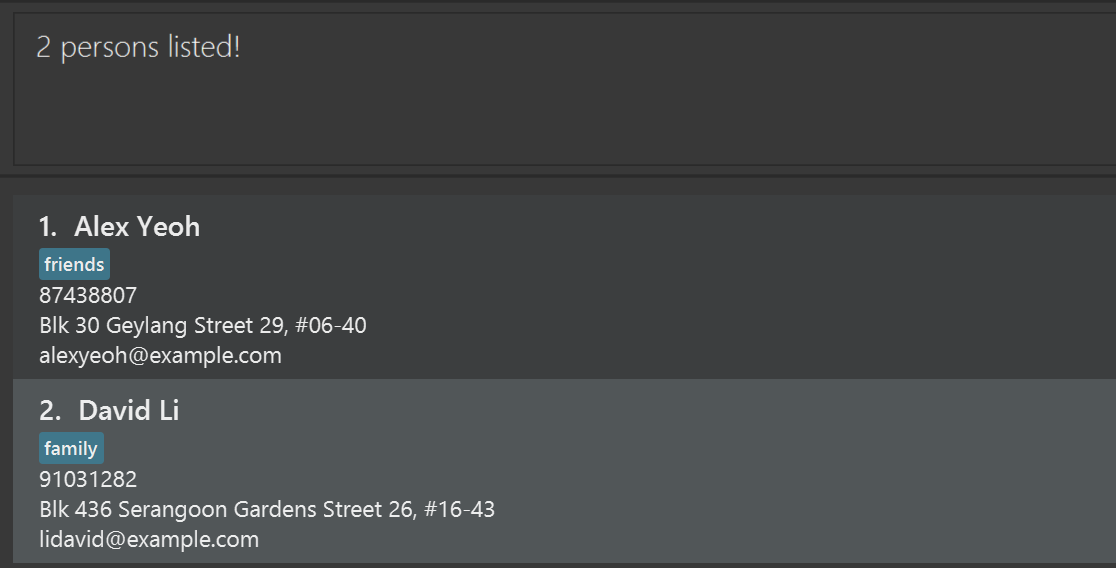
Useful Features
Here you can find useful features that can help improve your efficiency using HustleBook.
- Undoing the previous commands :
undo - Redoing the previous commands :
redo - Clearing all entries :
clear - Exiting the program :
exit - Recall recent used command
Undoing the previous commands : undo
Undoes the previous commands executed.
- Multiple
undois possible. - Maximum possible
undois till the time HustleBook is launched.
Format: undo
Note:
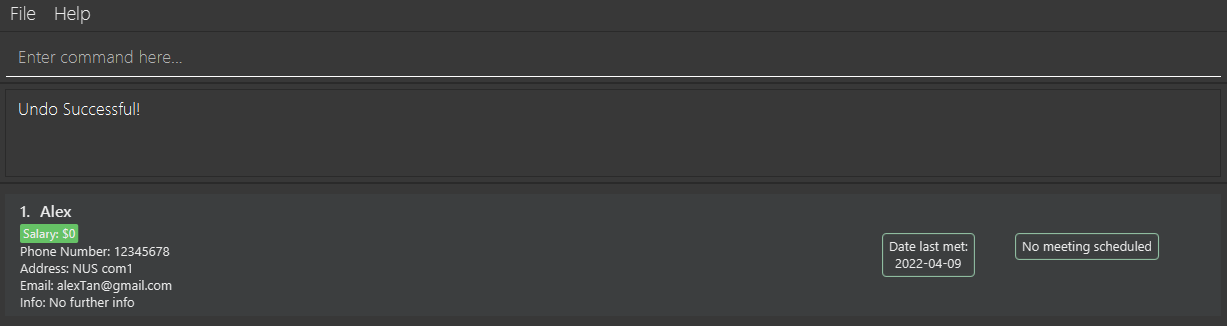
When a command is undone successfully, a message Undo Successful! will be displayed as shown below.
Note about the undo command:
- For
list,findandhelpcommands,undowill be executed successfully. TheUndo Successful!message will be displayed, however, undoing these commands will not cause visible changes in the client list displayed and their information.
Redoing the previous commands : redo
Redoes the previous commands executed.
- Multiple
redois possible. - Maximum possible
redois till the last executed command.
Format: redo
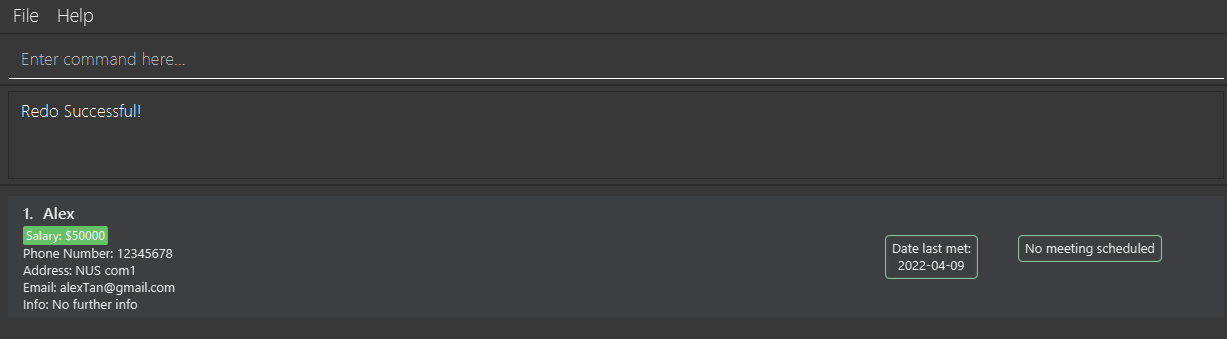
When a command is redo successfully, a message Redo Successful! will be displayed as shown below.
Note about the redo command:
- For
list,findandhelpcommands,redowill be executed successfully. TheRedo Successful!message will be displayed, however, redoing these commands will not cause visible changes in the client list displayed and their information.
Clearing all entries : clear
Clears all entries from the HustleBook.
Format: clear
Exiting the program : exit
Exits the program.
Format: exit
Recall recent used command
Recalls the most recent command used and enters it into the command box.
- By pressing the
UParrow key, the last command used is reentered into the command box. - Only the most recent command used can be recalled.
Miscellaneous Features
Here you can find miscellaneous features. These are only for advanced users as they have the potential to cause HustleBook to wipe your data.
Saving the data
HustleBook data are saved in the hard disk automatically after any command that changes the data. There is no need to save manually.
The data is saved in a json file found in a folder named data at the location HustleBook is saved in.
Editing the data file
HustleBook data are saved as a JSON file [JAR file location]/data/hustlebook.json. Advanced users are welcome to update data directly by editing that data file.
Caution:
If your changes to the data file makes its format invalid, HustleBook will discard all data and start with an empty data file at the next run.
Caution:
If you decide to make changes to the data file, HustleBook will not check the validity of the data. Such as meeting clashes and clients with the same name.
Command summary
| Action | Format, Examples |
|---|---|
| Add |
add n/NAME p/PHONE_NUMBER e/EMAIL a/ADDRESS [s/SALARY] [d/DATE] [i/INFO] [t/TAG]… e.g., add n/James Ho p/22224444 e/jamesho@example.com a/123, Clementi Rd, 1234665 s/3400
|
| List |
list [flag | unflag] e.g., list flag
|
| Clear | clear |
| Sort |
sort [meeting|name|prev|salary] e.g., sort name
|
| Undo | undo |
| Redo | redo |
| Delete |
delete NAMEe.g., delete John
|
| Flag |
flag NAMEe.g., flag John
|
| Unflag |
unflag NAME e.g., unflag John
|
| Meet |
meet NAME d/DATE t/TIME e.g., meet John d/2022-05-25 t/1430
|
| Edit |
edit NAME [n/NAME] [p/PHONE_NUMBER] [e/EMAIL] [a/ADDRESS] [d/DATE] [i/INFO] [t/TAG]…e.g., edit John n/James Lee e/jameslee@example.com
|
| Find |
find KEYWORD, [MORE_KEYWORDS]e.g., find James, Jake
|
| Help |
help [COMMAND] e.g., help meet
|